
A long, long time ago, in a summer camp far away (from where I currently live, I think it was about a 10-minute drive from where I was living at the time), I was introduced to a programming language called Logo. Designed to be easy to learn, Logo features a graphics window (or canvas) on which sits a turtle holding a pen. Why is it called a turtle? Reasons. A basic Logo project consists of giving the turtle various instructions, e.g. “move forward 10 pixels, turn right 90 degrees” etc., in order to draw a picture.
For me, where it got really fun was when we introduced things like arcs, random numbers, and recursion. Basically all of my projects were just throwing those elements together and seeing what happened.
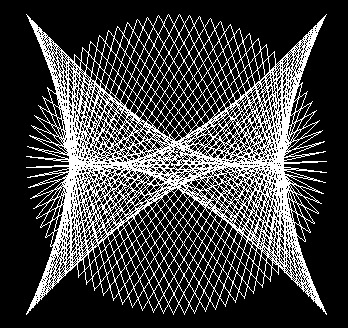
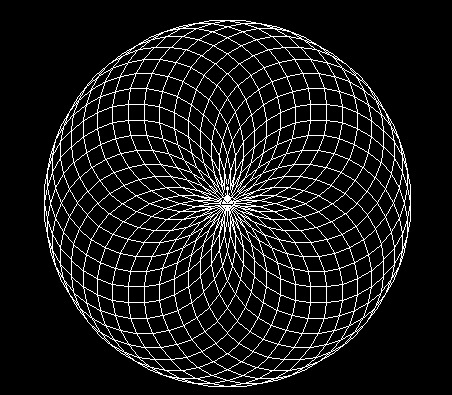
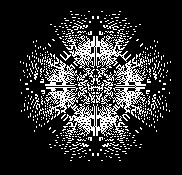
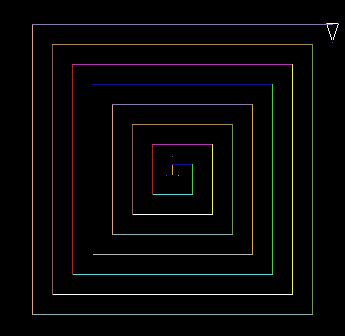
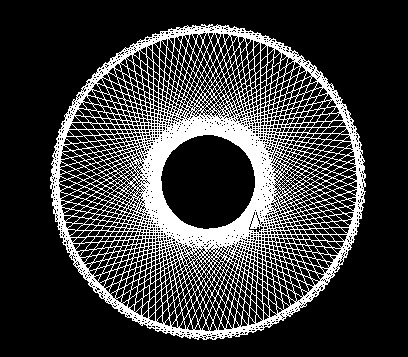
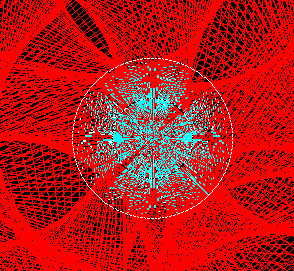

Given that I was a child and more interested in making it do cool things than in why it was doing them, I never really understood the code I wrote. Honestly, I don’t know if I really understood that it was code. But I saved it, and every once in a while I’d break it out and play around with it.
One such occasion occurred about a month ago. I’d just gotten a new computer and was going through my applications folder to figure out which apps didn’t work anymore and which of those I wanted to try to replace. The program I used to use for writing Logo is called UCBLogo (or Berkeley Logo), named after where it was developed. I remembered that to run it on Mac I’d had to use an intermediate program called X11, which doesn’t exist anymore, and I figured no one was updating a decades-old interpreter for a somewhat obscure programming language. Still, I looked it up, and was shocked to discover it had just been updated in July and they even had an up-to-date Mac build.
So of course I downloaded it and cracked it open to see what had changed in the last 20 years and…I mean it looks exactly the same, I think the updates they’ve rolled out have mostly just been about keeping it compatible with current systems. But still, as long as I had it open might as well play around, so I grabbed one of my old code snippets (in fact, it was the code that generated that multi-color square spiral thing above) and started changing some numbers.
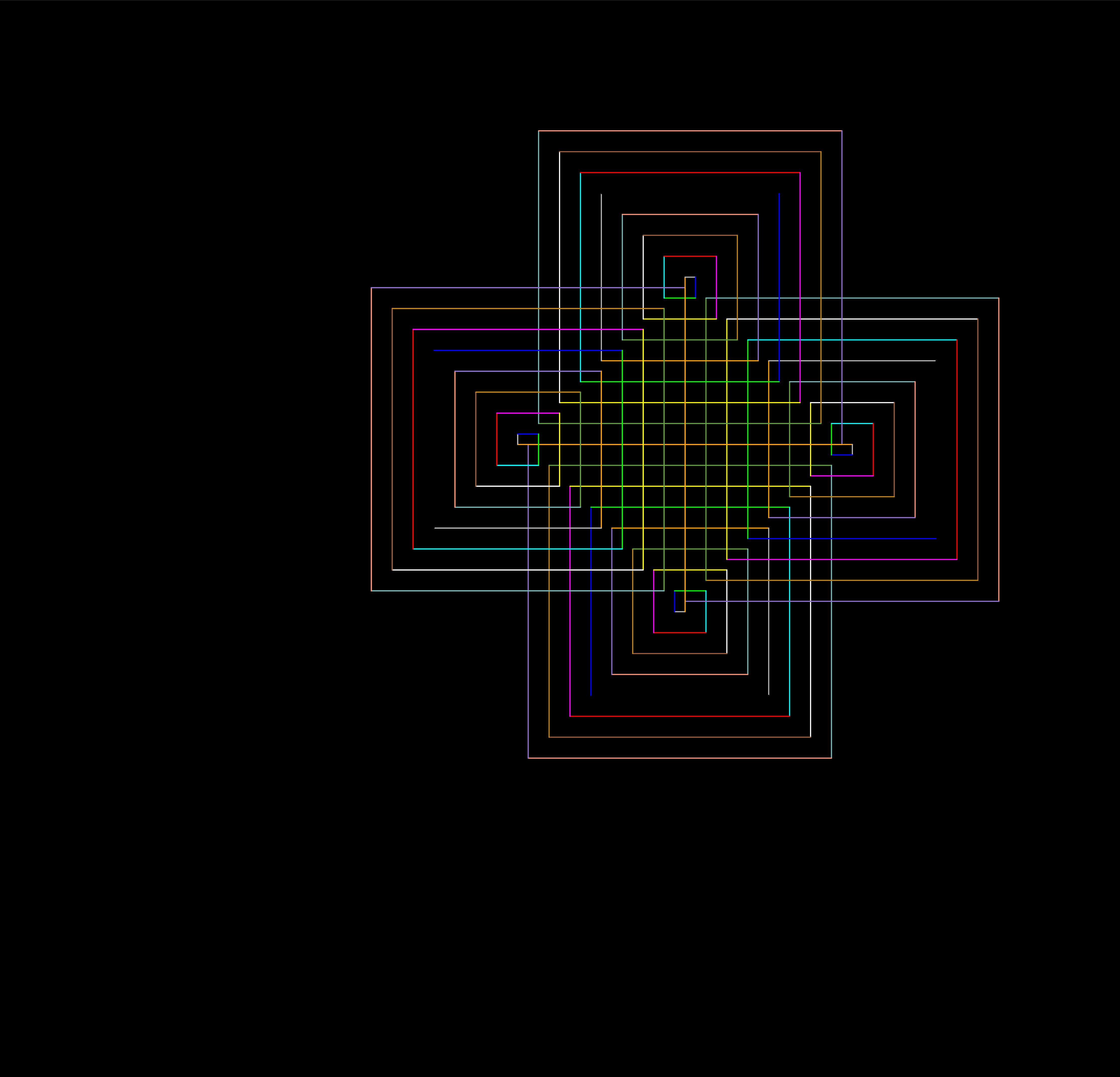
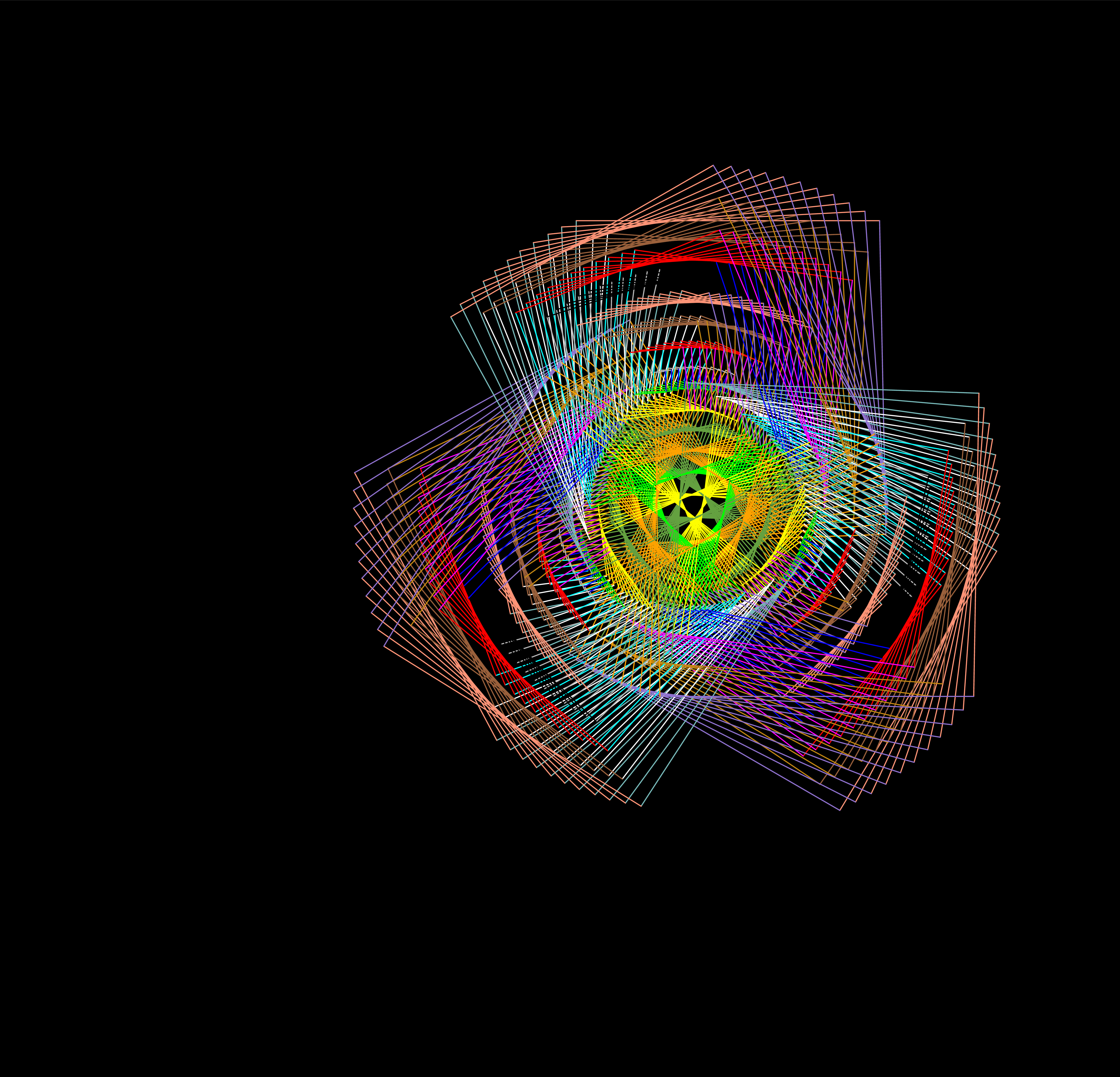
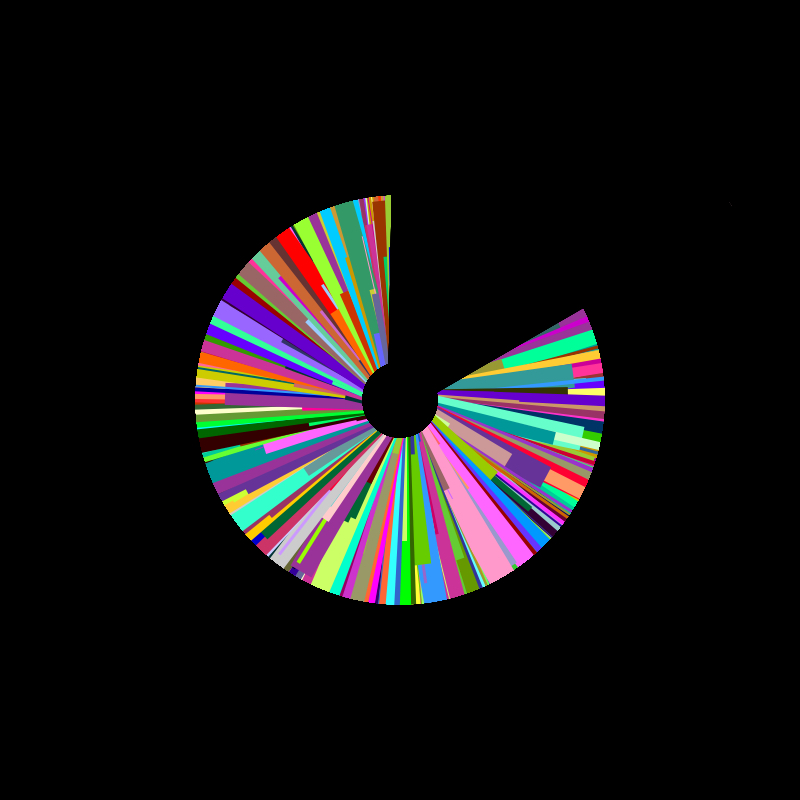
I added a rotation and repetition and got that vaguely-Celtic-knot-looking thing, and then I thought, “What if I change all the 90 degree angles to 89 degree angles,” leading to the swirly thing that kind of looks like its warning against radioactive material. And if you’re thinking it kind of looks like it’s in motion and maybe that means we’re finally getting to the point, well:
“Eminently doable” may have been an overstatement. UCBLogo does have a command for capturing the current state of the canvas and exporting that as an image, and because it’s a command you can run it in your code just like any other command. So creating the frames is easy enough, just add the export command (“EPSPICT”) after the part of your code that draws whatever you’re considering to be a frame, in this case each not-quite-square spiral.
I did that and ended up with 50 frames. Now is where it gets difficult. The EPS in “EPSPICT” stands for Encapsulated Postscript, an uncommon file type that unless you’re a graphic designer you’ve probably never heard of, and what’s more none of your applications have heard of it either. Googling “convert EPS to PNG” got surprisingly few useful results, mostly Redditors saying “Use Photoshop,” an option both expensive and inefficient, as you’d have to go one at a time. I do have GIMP, an open-source Photoshop alternative, but again, no batch-convert, and I wasn’t sure if I could automate it (the farther you get from built-in Apple applications the less AppleScript can do with them, as far as I can tell).
After about half an hour I was able to find a converter with a free online version that would let you do 10 at once, although it took a suspiciously long time—it took 20 minutes all told which might not sound like a lot but the largest EPS file was 132kb and the largest PNG file was 3mb, so I’m thinking they were hoping I’d get tired of the wait and just buy the desktop version. And I was tired, because at this point it was 9:30 and I usually go to bed around 8.

And then in the morning I had to spend several more minutes extracting the PNGs from the individuals folders this converter put them in when you downloaded the whole batch, which was very annoying, and I really didn’t want to have to go through this every time I wanted to make an animation.
Now, when I’d been texting my roommate the previous evening about how annoying it was UCBLogo couldn’t access the Clipboard, he’d suggesting trying ACSLogo (named after the person who developed it), a Logo interpreter built specifically for Mac. I’d glanced at the page, saw that it hadn’t been updated in a couple years, and figured I’d better stay with the devil I knew.
Well, the devil I knew was turning out to be quite devilish, so out of curiosity I took a closer look at ACSLogo and discovered that not only does it have access to the Clipboard, it also just…makes movies. Like, there’s a menu option for it.
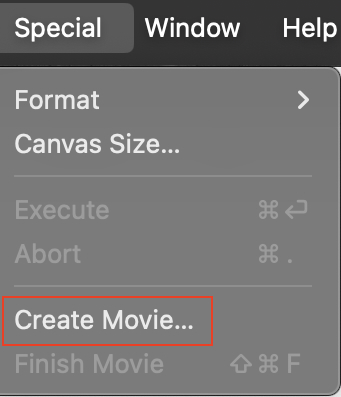
So of course I spent the next four days basically doing nothing but making animations.
You might notice the colors in this one are a little different; that’s because of UCBLogo and ACSLogo have different starting colors, and UCB’s are objectively better. Both programs have 16 colors defined by default, and these colors can be selected using the integers 0-15 (in computer science we often like to start at 0 rather than 1, it’s a whole thing); entering an integer greater than 15 will just restart the cycle (16=0, 17=1, etc.), unless the user has manually defined a color for that integer.
Here are UCB’s default colors:
0: black
1: blue
2: green
3: cyan
4: red
5: magenta
6: yellow
7: white
8: brown
9: tan
10: forest
11: aqua
12: salmon
13: purple
14: orange
15: grey
While the ordering feels a little arbitrary, it’s a solid mix of colors. I mean, they’ve got the Big Three, ol’ RGB (or in this case BG[cyanforsomereason]R), though that’s of course the bare minimum that any program would have. I mean, can you imagine writing a program that’s expressly for the purpose of creating graphics and it doesn’t even have one of the three basic colors?
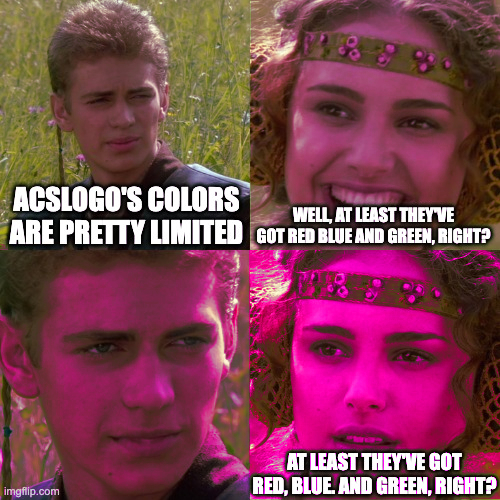
Anyway here’s ACSLogo’s default colors:
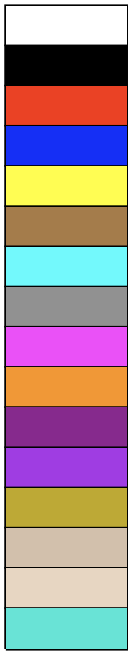
That’s right, by default ACSLogo does not include the color green. The manual offers no explanation for this. As its creator is from the UK, perhaps he’s never seen the color green behind all the rain and fog.
Fortunately, as with UCB, ACSLogo gives the user the option of manually defining colors. So I started messing around with an algorithm to create broad color palette without me having to enter in each individual color.


Why, you may ask, do these color tests look like exclamation points? Well, I was trying to figure out an easy drawing I could do and spread out over a wide field to test the color algo, and this is when I discovered one of ACSLogo’s best features: built-in text drawing. Using the GraphicsType command, one can easily print text using the current pen color and size (you can even change the font, though I haven’t messed around with that yet). Another example (which I actually think looks pretty good):

Well, with this discovery I naturally became obsessed with animating a bouncing “BALL”.
WARNING: The rest of the videos in this post contain flashing images and may be harmful to those with epilepsy or other visual sensitivities. This is not a joke, I am legitimately concerned for your wellbeing.
That was Day 1. On Day 2 I finally reached what felt like version 1.0:
Having gotten a good, standard version, I decided to mess around with the actual, for lack of a better word, physics of the animation. Obviously a real ball wouldn’t bounce up to the same height every time, so I wanted to try to simulate that entropy. This ended up being significantly more complicated than I anticipated.
Day 3:
And finally, Day 4:
Anyway, I could show you a few more (even some that don’t feature a bouncing word), but at this point you’re probably getting as bored as I was. The novelty was wearing off, and without any plans to actually use these animations for some project or other I was losing motivation. Plus, I was becoming increasingly aware of how low quality the videos were, and there’s no way to change how ACSLogo encodes them, so to get higher-quality ones I’d have to grab the stills and stitch them together manually, which didn’t feel worth it for just silly experiments.
Thus, I decided to put aside the animations for the time being. I was still very much enjoying working in Logo, but I wanted to focus more on making still images. So, join me next time for…actual art?
 Certain of Eventual Failure